Docs › Clipboard history
Clipboard history
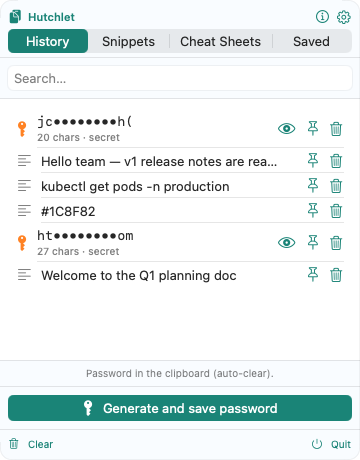
The default macOS clipboard holds one thing at a time. Hutchlet keeps a running, searchable history of everything you copy — and hands the right item back when you need it.
What gets captured
- Text and links — plain text, rich text, URLs.
- Images — screenshots and copied images.
- Files — saved as a reference to the file, not a copy of its bytes.
- Source app — each item remembers which app it was copied from and shows its icon and name in the list; a generated password points back to the app you summoned Hutchlet from. Optional — turn it off in Settings → General.
In the App Store build, capture begins only after you enable clipboard history (it asks on first launch); the Developer-ID build monitors from launch and can be paused or quit at any time. Anything detected as sensitive is handled as a secret instead — encrypted and kept out of search.
Search & pin
- Search — type in the Search… field to filter by content (case-insensitive). Secrets are never indexed, so they don’t show up in search.
- Pin — pin the items you reuse most so they stay at the top and are never auto-evicted. Unpin to let them age out normally.
- Clear — Remove unpinned items wipes history while keeping your pins.
Smart retention
Retention keeps history useful without letting it grow forever. Configure it in Settings → History:
| Setting | What it does |
|---|---|
| Always keep | The newest N items stay forever. |
| Keep up to | The maximum number of items kept in total. |
| Keep extras while fresh (hours) | Beyond “always keep”, items are kept only while fresh, up to the maximum. |
| Protect against large clips | Items bigger than your max size per item stay on the system clipboard but aren’t saved to history. Files are saved as a reference, so they never count as too large. |
| Ignore types | Optionally don’t save images and/or files. |
The newest items (Always keep) stay forever; beyond that, items are kept only while fresh, up to the maximum. Pinned items are exempt from eviction entirely.