Docs › Getting started
Getting started
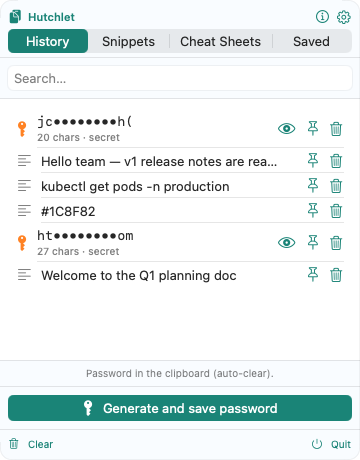
Hutchlet is a menu-bar app. Once it’s running it stays quietly out of the way until you summon it — then it hands back anything you’ve copied.
1. Install & launch
Install Hutchlet (see Download) and open it. It appears in your menu bar rather than the Dock. The App Store build asks permission on first launch to keep a private, local history of what you copy — everything stays on this Mac, and secrets are additionally encrypted. (The Developer-ID build starts monitoring at launch; you can pause or quit it at any time.)
You can have Hutchlet open automatically at login from Settings → General → Launch at login.
2. Summon the panel
Two ways to bring up the panel right where your cursor is:
- Keyboard shortcut — ⌘⇧V by default. You can change it in Settings → Shortcuts.
- Mouse gesture — ⌃ + right-click by default. The button and modifier keys are configurable.
In the Mac App Store build, the mouse gesture opens the panel but does not replace the system right-click menu.
3. Paste what you need
Open the panel
Use the shortcut or gesture in the app where you want to paste.
Find your item
It’s at the top if it’s recent, or type in Search… to filter.
Paste it
Pick the item. If you’ve granted Accessibility, Hutchlet auto-pastes it into the app you were just in; otherwise it copies it and you press ⌘V.
What’s in the panel
| Tab | What it holds |
|---|---|
| History | Everything you’ve copied — text, links, images, files. |
| Snippets | Text you save on purpose and reuse with a click. |
| Cheat Sheets | Ready-made commands you fill in and preview. |
| Saved | Filled-in cheat sheets kept for re-use. |
There’s also a one-tap Generate and save password button, and a gear (⚙️) for settings.