Docs › Password generator
Password generator
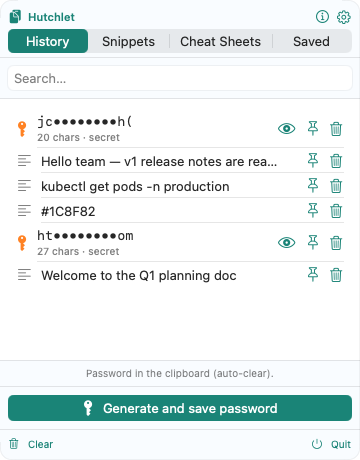
Need a strong password? The panel has a one-tap Generate and save password button that builds one from your settings and drops it into the clipboard — then auto-clears it.
Two modes
Characters
Choose length and which character classes to include: lowercase, uppercase, digits, symbols. Turn on Exclude ambiguous to drop look-alike characters.
Passphrase
Pick the number of words, whether to capitalize, and whether to add a digit — easier to type, still strong.
Entropy
Hutchlet shows the bits of entropy for each generated password, so you can see at a glance how strong it is and tune the settings to taste.
Auto-clear
A generated password lands in the system clipboard so you can paste it, then is wiped a few seconds later so it doesn’t linger. You’ll see “Password in the clipboard (auto-clear).”
Configure both modes in Settings → Password generator. A generated password you choose to keep is stored as an encrypted secret.