How-to › Strong passwords safely
Generate strong passwords safely
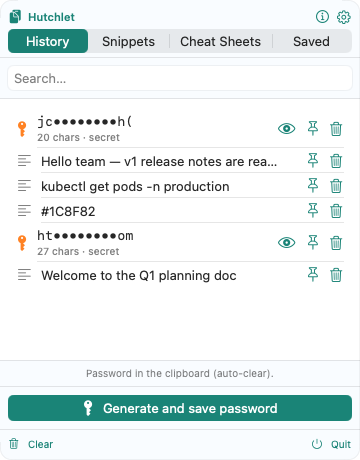
Creating a new account or rotating a credential? Skip the weak “Password123” and let Hutchlet build a strong one — and clean up after itself.
Set your style once
In Settings → Password generator, choose Characters (length + classes, exclude ambiguous) or Passphrase (words, capitalize, add a digit). Watch the entropy to gauge strength.
Generate from the panel
Tap Generate and save password. Hutchlet builds one from your settings and copies it to the clipboard.
Paste it where it’s needed
Press ⌘V into the password field. You’ll see “Password in the clipboard (auto-clear).”
Let it auto-clear
A few seconds later Hutchlet wipes the password from the system clipboard so it doesn’t linger in whatever you paste next.
Want to keep it? A password you save is stored as an encrypted secret — masked as ab••••yz and revealed only behind Touch ID. It’s never added to searchable history.