Docs › Settings
Settings
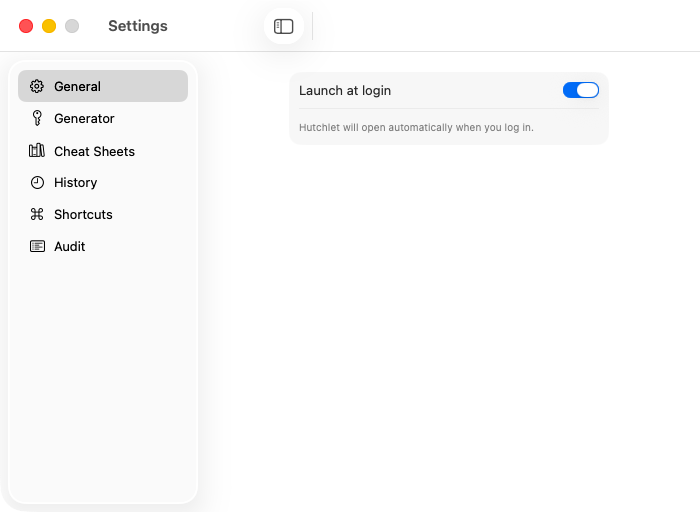
Open settings from the gear (⚙️) in the panel. Everything is local — there’s nothing to sign in to.
General
- Launch at login — Hutchlet opens automatically when you log in.
- Restore clipboard after paste — after Hutchlet pastes for you, your previous clipboard contents are put back.
- Show source app for clipboard items — each history item remembers which app it was copied from and shows its icon and name in the list. Turn it off and nothing is recorded or shown. On by default.
- Clear secrets from the clipboard after — how many seconds a copied or pasted secret stays on the clipboard (default 30). Regular items are never auto-cleared.
Shortcuts
- Keyboard shortcut — set how you summon the panel. Click the field, then press your shortcut (at least one modifier). Default ⌘⇧V.
- Mouse gesture — choose a mouse button (left, right, middle, side 4/5) optionally held with ⌃/⌥/⇧/⌘. Default ⌃ + right-click.
In the App Store build the mouse gesture opens the panel but doesn’t replace the system right-click menu. Auto-paste needs Accessibility permission (see Privacy & security).
History
The retention controls — Always keep, Keep up to, Keep extras while fresh, Protect against large clips, and Ignore types — are covered in Clipboard history. There’s a Reset to defaults if you change your mind.
Password generator
Tune the Characters and Passphrase modes — see Password generator.
Snippets & Cheat Sheets
- Snippets — manage your reusable text and folders.
- Cheat Sheets — turn whole groups, categories, or single cheat sheets on or off. Anything off is hidden from the panel. A magnifying-glass Preview shows an example command for any sheet.
Languages
Hutchlet speaks English, Polish, German, and Spanish, picked automatically from your macOS language.