How-to › Keep secrets out of history
Keep secrets out of your history
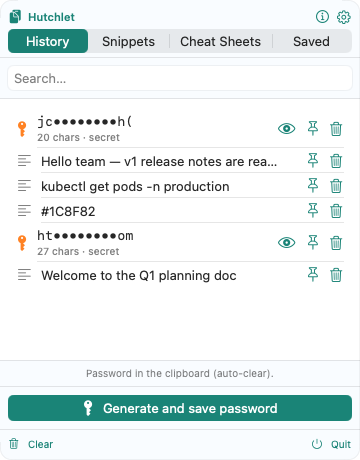
A clipboard history is wonderful — until it quietly remembers the password you copied from your vault. Hutchlet handles that for you.
It mostly just works
When you copy something that looks like a password, API key, private key, JWT, or card number, Hutchlet detects it on-device and stores it as an encrypted secret instead of plain history. It also honours apps that mark content as confidential, so a password manager’s copy is treated as a secret automatically.
Copy as usual
Grab a credential from your password manager or a config file.
See it masked
In the panel it shows as
ab••••yzwith its length and type — never the plaintext.Reveal only when needed
Reveal or Paste prompts for Touch ID first. It’s never in search, so it won’t surface while you’re looking for something else.
Good habits
- Use the generator’s auto-clear when you only need a password once.
- Keep recurring credentials as secret snippets — encrypted and masked, but a click away.
- Clearing history with Remove unpinned items never exposes secrets — they were never in plain history to begin with.
Everything here happens locally. Secrets are encrypted with CryptoKit, unlocked with Touch ID, and never leave your Mac.