How-to › Tune your summon setup
Tune your summon setup
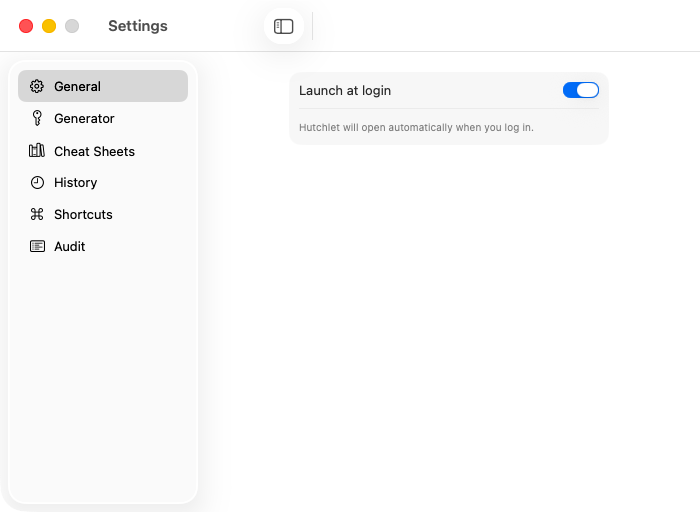
The panel is only fast if opening it is effortless. Spend two minutes setting a shortcut and gesture that fit your hands.
Pick a keyboard shortcut
Open Shortcuts
Settings → Shortcuts → Summon the panel.
Record it
Click the field, then press your combination (at least one modifier). Default is ⌘⇧V — close to the system paste, easy to remember.
Add a mouse gesture
Choose a button
Left, right, middle (wheel), or side button 4/5 — great if your mouse has spare buttons.
Hold a modifier (optional)
Pair it with ⌃/⌥/⇧/⌘ so it won’t fire by accident. Default is ⌃ + right-click.
The mouse gesture needs Input Monitoring, which only watches the configured button — it never records keystrokes. In the App Store build the gesture opens the panel but doesn’t replace the system right-click menu. See permissions.
Optional: auto-paste
Turn on Enable auto-paste (Accessibility) so picking an item pastes it straight into the app you were in. Without it, Hutchlet copies the item and you press ⌘V — your choice.